> ## Documentation Index
> Fetch the complete documentation index at: https://docs.symmetry.com/llms.txt
> Use this file to discover all available pages before exploring further.
# Remote I-9 overview (authorized representatives)
> Verify identity and work authorization remotely using Authorized Representatives. Covers enabling remote I-9, representative requirements, and designating one.
## Overview
Remote I-9 allows employers to verify an employee’s identity and work authorization when in-person verification is not feasible. This is commonly used for remote employees and involves the use of Authorized Representatives--individuals designated by the employer to complete Section 2 of Form I-9 on their behalf.
## Enable remote I-9
Remote I-9 is enabled at the time of license. If you want to have remote I-9 capabilities turned on for one or more employers, you must confirm at the time of purchase. Remote I-9 will then be enabled for all employers within your account. See below for instructions on how to turn off Remote I-9.
## Authorized representative requirements
**Authorized Representative**: all Authorized Representatives who complete section 2 using Symmetry I-9 must have a smart phone.
**Employee**: while the employee is not required to have a smart phone, it is encouraged. Employees can use a computer or smart phone and still use an Authorized Representative.
**Employer**: all employers, regardless of e-verify enrollment, can use authorized representatives. Remote I-9 must be turned on in your account at the time of licensing. If you have any questions about whether Remote I-9 is turned on, please [reach out to our team](https://symmetry1478.zendesk.com/agent/).
## Responsibilities of an authorized representative
There are several responsibilities of an Authorized Representative:
* Physically examine the employee’s original identity and work authorization documents
* Ensure the documents appear genuine and relate to the employee
* Complete and sign Section 2 of Form I-9, including employer information
## Designating an authorized representative
There are two ways an Authorized Representative can complete Section 2 with the employee:
* **Enable location sharing**: both the employee and Authorized Representative must share their location
* **QR code**: the employee can bypass sharing their location and display a QR code for the authorized representative to scan
Once the employee has identified their Authorized Representative, the Authorized Representative will receive a text message with a link to begin the document review.
### Enable location sharing
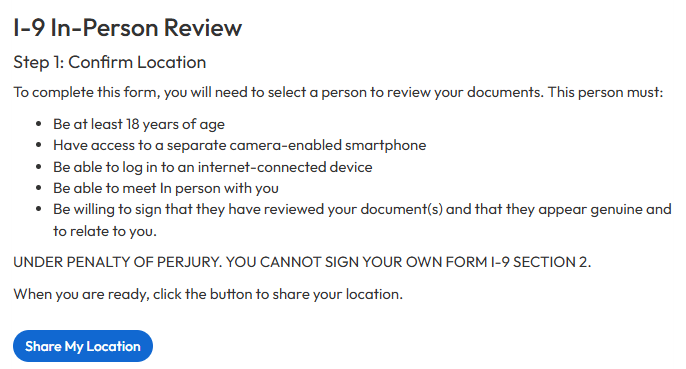
To begin, the employee will be prompted to share their location.
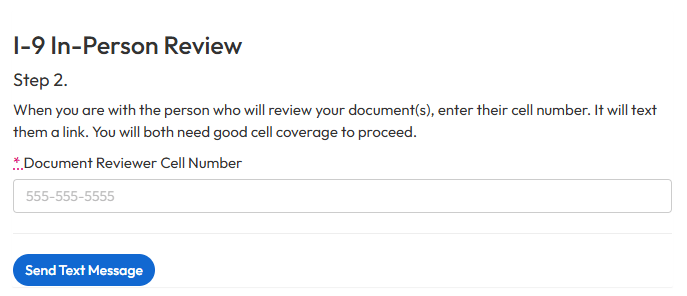
 Next, the employee will enter the phone number of the person who is acting as your authorized representative, and click ‘Send Text Message’. The Authorized Representative will receive a text message with a hyperlink to log in and complete their review. We will guide them through each step of the way! As a reminder, the Authorized Representative will need to have a smart phone.
 #### Authorized representative actions
The first step is for the Authorized Representative to share their location by clicking "Submit Your Location" within the guided flow.
#### Authorized representative actions
The first step is for the Authorized Representative to share their location by clicking "Submit Your Location" within the guided flow.
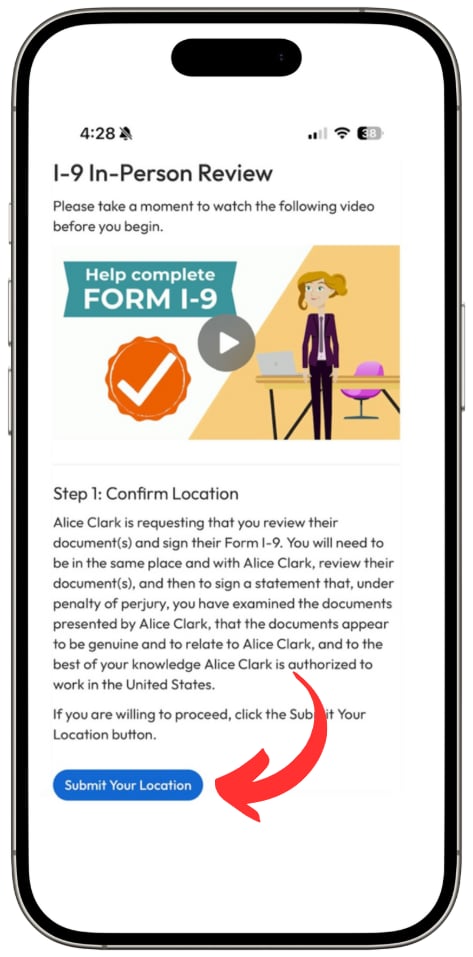 Once the authorized representative has enabled location sharing, they will complete the following review steps:
1. Enter their full name and agree to the perjury statement
2. Complete the document review by answering the following yes/no questions for each document:
1. Matches the information provided
2. Appears to be genuine
3. Appears to relate to \[employee's name]
3. If the Authorized Representative confirms the documents match (answers yes to each question), they will be prompted to sign their name and select "complete verification."
4. If the Authorized Representative states the documents do not match (answers no to any question), they will be prompted to select "complete" and they will receive the following message: "Thank you, you are finished." The employee will see the following message on their screen: "I-9 verification could not be completed. If you believe this is an error or wish to provide alternative document(s), you may contact your employer."
### QR code
If the employee chooses not to share their location, a QR code will appear within the employee's embedded mode. The Authorized Representative will scan the QR code on the employee's device to begin. This ensures the employee and Authorized Representative are in the same physical location.
#### QR code scan
To begin, the employee will enter the telephone number of the authorized representative and select "send text message."
The Authorized Representative will receive a text message with a unique hyperlink, requesting a review of the employee's I-9 documents. Once they click on the hyperlink, they will be prompted to share their location, and the following message will appear: "We were unable to access your or \[employee's name]'s location."
The authorized representative will select "begin QR code scan" on their mobile device and scan the QR code on the Authorized Representative's mobile device. A pop up may appear requesting access to the device's camera. Allow camera access on your device.
The Authorized Representative will then select "scan completed", which will then allow them to complete the document review steps below.
#### Document review
Once the employee and Authorized Representative has completed the QR scan, the Authorized Representative will complete the following review steps:
* Enter their full name and agree to the perjury statement
* Complete the document review by answer the following yes/no questions for each document:
* Matches the information provided
* Appears to be genuine
* Appears to relate to \[employee's name]
* If the Authorized Representative confirms the documents match (answers yes to each question), they will be prompted to sign their name and select "complete verification."
* If the Authorized Representative states the documents do not match (answers no to any question), they will be prompted to select "complete" and they will receive the following message: "Thank you, you are finished."
The following is a sample of the audit information will be captured when completing section 2 with a QR code:
* Date and time employee submitted the authorized representative's phone number
* Date and time authorized representative scans QR code
* Date, time, name, and IP address when authorized representative certifies identity information in section 2
* Date, time, name, and IP address when authorized representative countersigns section 2
## Disable remote I-9
For employers who wish to disable Remote I-9—either for all employees or for specific individuals—you can do this within the `employeeDocumentOptions` object during the employee registration process:
* `"i9RemoteCounterSignAuthorized": false`
* `"i9RemoteReverificationAuthorized": false`
When set to false, employees will not be able to access the Remote I-9 feature.
```json theme={null}
"employment": {
"startDate": "2025-06-01",
"status": "active",
"employeeDocumentOptions": {
"i9RemoteCounterSignAuthorized": false,
"i9RemoteReverificationAuthorized": false
}
}
```
## Remote I-9 for Section 2 demo
Once the authorized representative has enabled location sharing, they will complete the following review steps:
1. Enter their full name and agree to the perjury statement
2. Complete the document review by answering the following yes/no questions for each document:
1. Matches the information provided
2. Appears to be genuine
3. Appears to relate to \[employee's name]
3. If the Authorized Representative confirms the documents match (answers yes to each question), they will be prompted to sign their name and select "complete verification."
4. If the Authorized Representative states the documents do not match (answers no to any question), they will be prompted to select "complete" and they will receive the following message: "Thank you, you are finished." The employee will see the following message on their screen: "I-9 verification could not be completed. If you believe this is an error or wish to provide alternative document(s), you may contact your employer."
### QR code
If the employee chooses not to share their location, a QR code will appear within the employee's embedded mode. The Authorized Representative will scan the QR code on the employee's device to begin. This ensures the employee and Authorized Representative are in the same physical location.
#### QR code scan
To begin, the employee will enter the telephone number of the authorized representative and select "send text message."
The Authorized Representative will receive a text message with a unique hyperlink, requesting a review of the employee's I-9 documents. Once they click on the hyperlink, they will be prompted to share their location, and the following message will appear: "We were unable to access your or \[employee's name]'s location."
The authorized representative will select "begin QR code scan" on their mobile device and scan the QR code on the Authorized Representative's mobile device. A pop up may appear requesting access to the device's camera. Allow camera access on your device.
The Authorized Representative will then select "scan completed", which will then allow them to complete the document review steps below.
#### Document review
Once the employee and Authorized Representative has completed the QR scan, the Authorized Representative will complete the following review steps:
* Enter their full name and agree to the perjury statement
* Complete the document review by answer the following yes/no questions for each document:
* Matches the information provided
* Appears to be genuine
* Appears to relate to \[employee's name]
* If the Authorized Representative confirms the documents match (answers yes to each question), they will be prompted to sign their name and select "complete verification."
* If the Authorized Representative states the documents do not match (answers no to any question), they will be prompted to select "complete" and they will receive the following message: "Thank you, you are finished."
The following is a sample of the audit information will be captured when completing section 2 with a QR code:
* Date and time employee submitted the authorized representative's phone number
* Date and time authorized representative scans QR code
* Date, time, name, and IP address when authorized representative certifies identity information in section 2
* Date, time, name, and IP address when authorized representative countersigns section 2
## Disable remote I-9
For employers who wish to disable Remote I-9—either for all employees or for specific individuals—you can do this within the `employeeDocumentOptions` object during the employee registration process:
* `"i9RemoteCounterSignAuthorized": false`
* `"i9RemoteReverificationAuthorized": false`
When set to false, employees will not be able to access the Remote I-9 feature.
```json theme={null}
"employment": {
"startDate": "2025-06-01",
"status": "active",
"employeeDocumentOptions": {
"i9RemoteCounterSignAuthorized": false,
"i9RemoteReverificationAuthorized": false
}
}
```
## Remote I-9 for Section 2 demo