> ## Documentation Index
> Fetch the complete documentation index at: https://docs.symmetry.com/llms.txt
> Use this file to discover all available pages before exploring further.
# SPF API overview
> Base URLs, authentication, and the tools (live Swagger and Postman collections) for working with the Symmetry Payroll Forms API.
The Symmetry Payroll Forms (SPF) API determines which withholding forms an employee must complete, serves the question sets that drive them, and returns completed PDFs and tax parameters. The endpoint reference in this section is generated from the SPF OpenAPI specification.
New to the SPF API? Start with the [SPF API quickstart](/spf/getting-started/api-quickstart) for a complete first request, then use this reference for full endpoint and schema details.
## Environments and base URLs
| Environment | Base URL |
| ----------- | -------------------------------------- |
| Production | `https://api.symmetry.com/spf` |
| Staging | `https://api-staging.symmetry.com/spf` |
The authentication endpoint sits **outside** the `/spf` base path used by every other endpoint. It's `https://api.symmetry.com/authentication/login` (production) or `https://api-staging.symmetry.com/authentication/login` (staging). Don't prepend `/spf`.
## Authentication
Every SPF endpoint other than `/authentication/login` requires a JWT access token. Request one by calling the authentication endpoint with your API key, then send the token as a Bearer token in the `Authorization` header. See [Authentication in SPF](/spf/getting-started/authentication) for the full header format and token lifetime.
**Access token versus API key**
Your access token is not the same as your API key. Your API key is used for initial authentication to obtain an access token from the `/authentication/login` endpoint. Your access token is used for authorization to access and interact with other SPF API endpoints securely.
## Explore in Swagger
API clients can access our Swagger documentation to test and explore each endpoint, and see a comprehensive overview of all available features.
Our Swagger docs are available for both our production and staging environments.
* [Production SPF API Swagger](https://api.symmetry.com/spf/docs)
* [Staging SPF API Swagger](https://api-staging.symmetry.com/spf/docs)
### Authorize access to Swagger docs
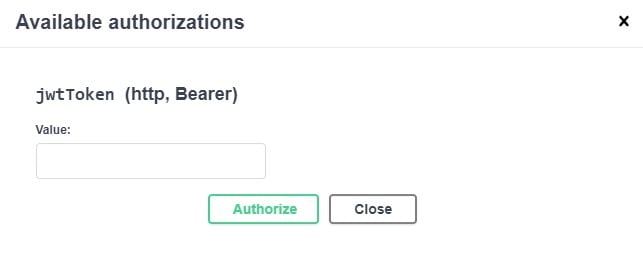
To generate the token, make a request to the `/authentication/login` endpoint to receive a valid access token. Then click the **Authorize** button on the right side of the browser, enter this access token into the dialog box for the respective environment, and click **Authorize**.

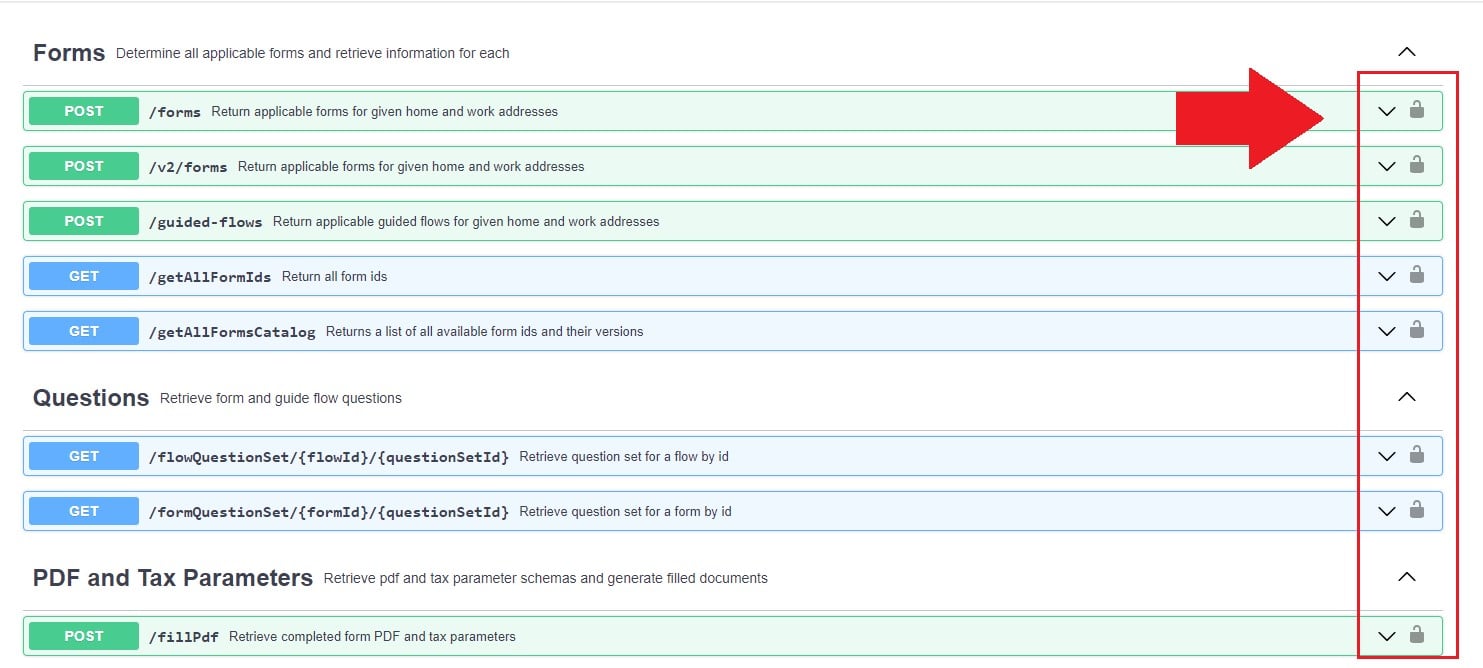
 Once authorized successfully, you'll see an unlocked symbol appear on each of the endpoints. This is your indication that you can send the sample requests to each endpoint.
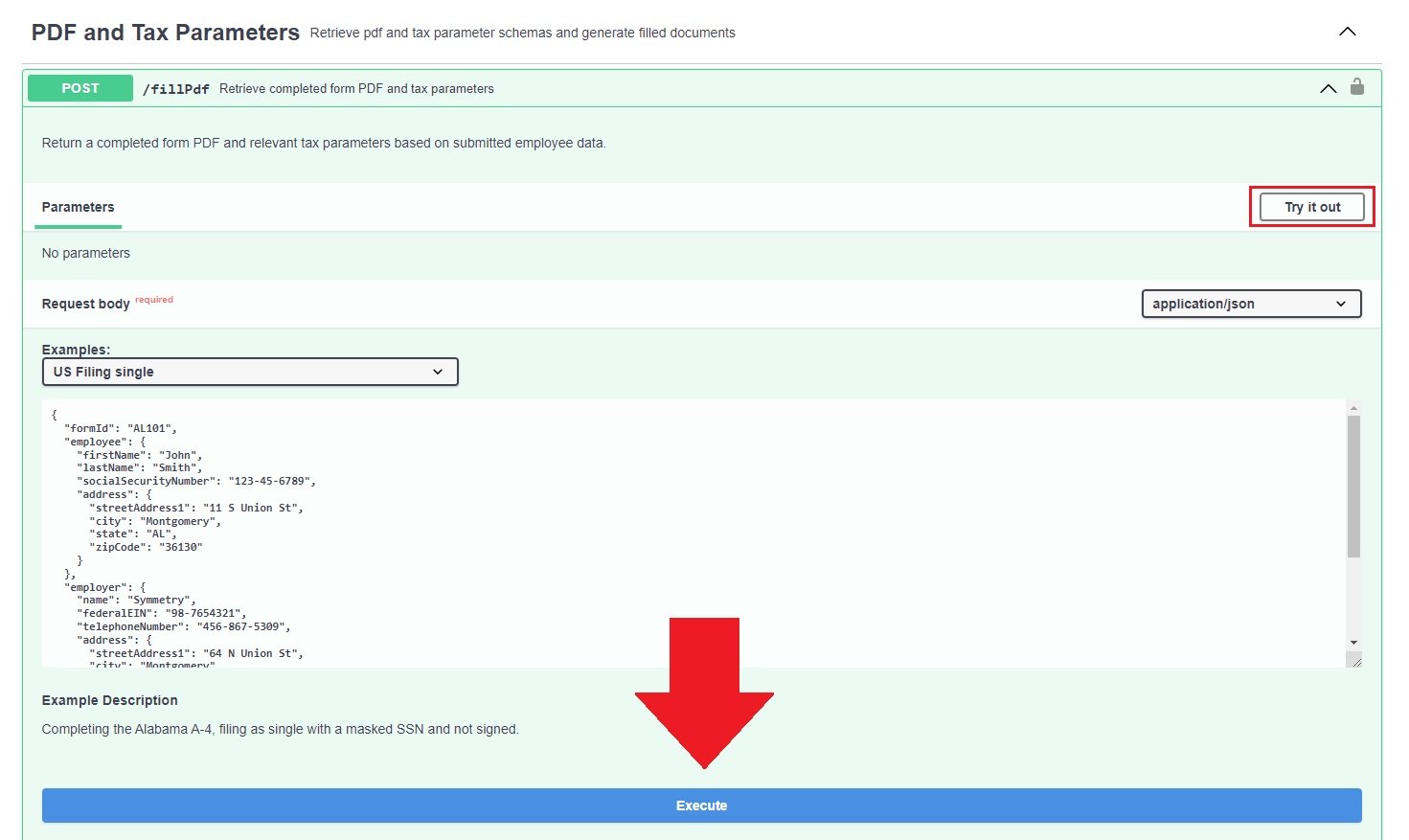
 Click into the desired endpoint, select **try it out**, and then **Execute**.
 You'll then receive the response from the endpoint.
## Next steps
Download the SPF Postman collection and environment directly from the API.
Full reference for every forms, questions, and PDF endpoint.
You'll then receive the response from the endpoint.
## Next steps
Download the SPF Postman collection and environment directly from the API.
Full reference for every forms, questions, and PDF endpoint.