> ## Documentation Index
> Fetch the complete documentation index at: https://docs.symmetry.com/llms.txt
> Use this file to discover all available pages before exploring further.
# Form modes (Choose, Guided, Single form)
> Pick SPF Hosted and On-Premise form modes: Choose, Guided, or Single Form. Covers when each mode fits and how employee form selection and validation work.
There are three modes within SPF:
[**Choose Mode**](#choose-mode) - ideal for companies and employees who know the exact forms they need; gives employees the ability to select forms at will while field validation ensures employees complete forms accurately.
[**Guided Mode**](#guided-mode) - ideal for employee onboarding; employees are coached through an automated process ensuring forms are correct and complete.
[**Single Form Mode**](#single-form-mode) - present an employee with a single form that needs to be submitted.
## Choose mode
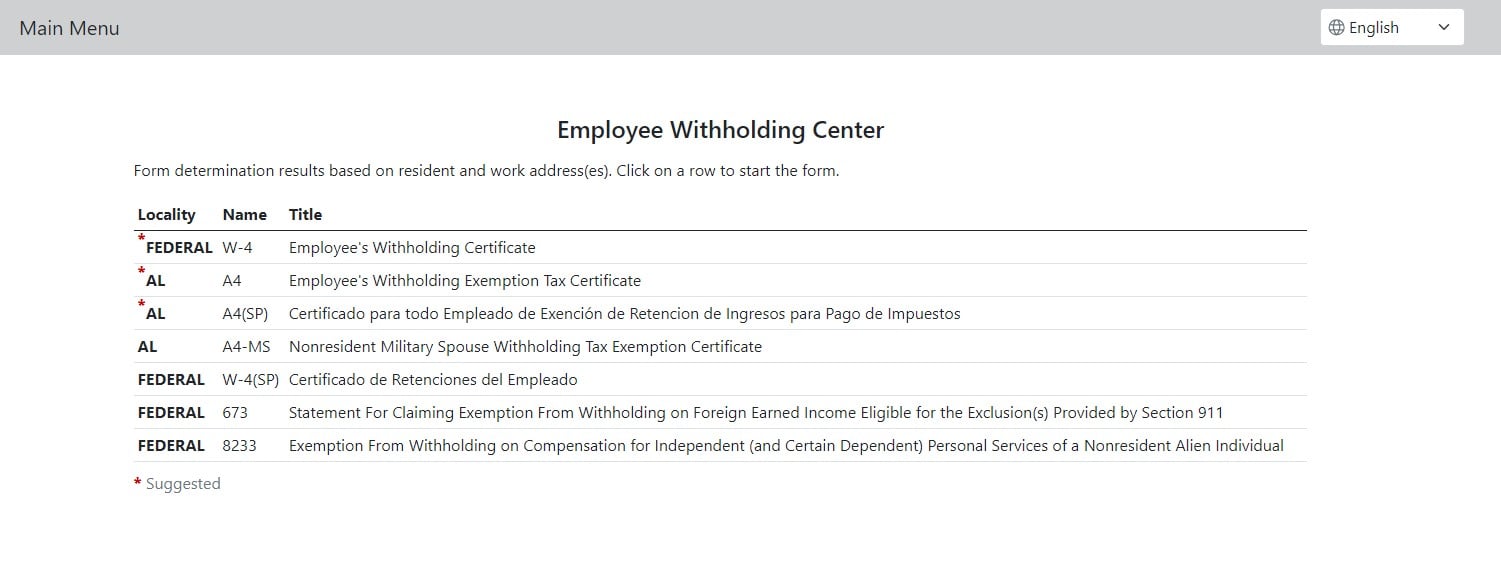
Choose Mode is used within Symmetry Payroll Forms to give an employee the ability to select forms at-will, should they know the exact form or forms they need to file. Choose Mode suggests a list of forms for the employee to complete based on data from the employee’s physical resident address, as well as the physical address where the employee performs work.
This mode is controlled by the `"chooseMode"` element within the `"config"` object in `settings.json`, the SPF Registration JSON or through the Admin Panel settings and is turned on when the sub-element `"enabled"` is set to `true`. If `"guidedMode"` is also enabled, the employee will have the option to select either “Guide me” or “Let me choose”, as pictured below.
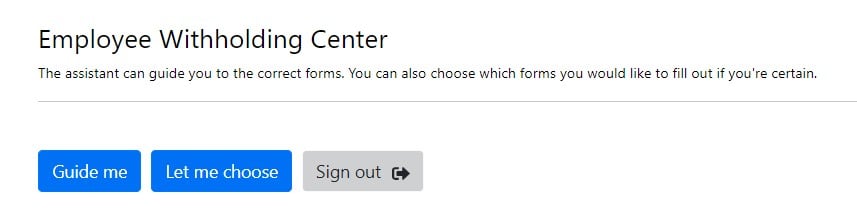 Choose Mode is what is displayed when the, “Let me choose”, option is chosen by the employee. If the `"guidedMode"` element is not enabled, the employee will be taken directly into Choose Mode. When Choose Mode has been successfully been launched, the employee’s screen will look like this:
 ## Guided mode
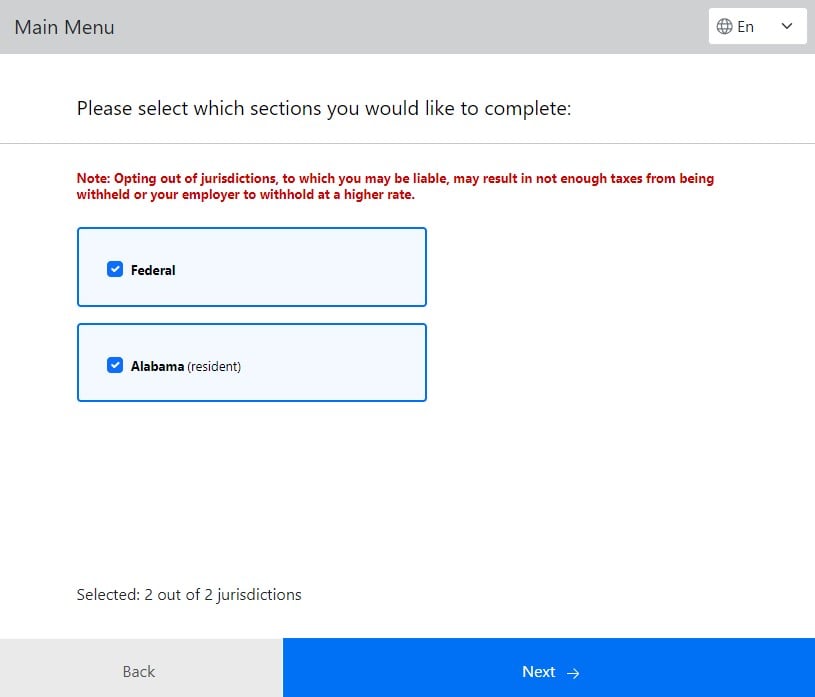
Guided Mode is used within Symmetry Payroll Forms to coach an employee through an automated process to ensure all forms are correct and complete. Guided Mode takes data based on the employee’s physical resident address, as well their physical work address, and presents a number of questions related to various withholding criteria to determine which are the correct forms to complete.
This mode is controlled by the `"guidedMode"` element in `settings.json`, the SPF Registration JSON or through Admin Panel settings and is turned on when the `"enabled"` sub-element is set to `true`. If the `"chooseMode"` element is also enabled, the employee will have the option to select either “Guide me” or “Let me choose”. Guided Mode is what is displayed when the “Guide me” option is chosen. If the `"chooseMode"` element is not enabled, the employee will be taken directly into Guided Mode. When Guided Mode has successfully been launched, the employee’s screen will look like this:
## Guided mode
Guided Mode is used within Symmetry Payroll Forms to coach an employee through an automated process to ensure all forms are correct and complete. Guided Mode takes data based on the employee’s physical resident address, as well their physical work address, and presents a number of questions related to various withholding criteria to determine which are the correct forms to complete.
This mode is controlled by the `"guidedMode"` element in `settings.json`, the SPF Registration JSON or through Admin Panel settings and is turned on when the `"enabled"` sub-element is set to `true`. If the `"chooseMode"` element is also enabled, the employee will have the option to select either “Guide me” or “Let me choose”. Guided Mode is what is displayed when the “Guide me” option is chosen. If the `"chooseMode"` element is not enabled, the employee will be taken directly into Guided Mode. When Guided Mode has successfully been launched, the employee’s screen will look like this:
 ### Turn off jurisdictions
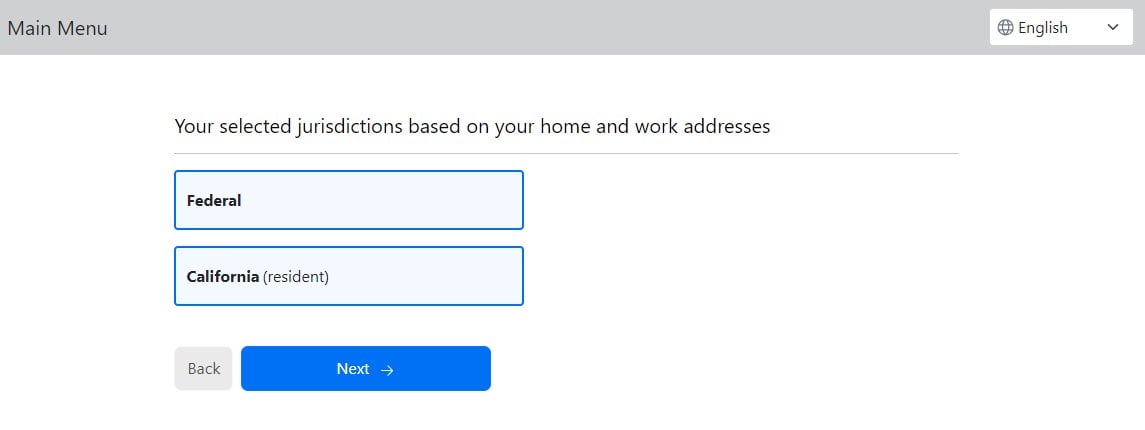
The option to skip any of the sections can be turned off by setting the `"disableLocalitySelection"` element’s value to `true` for `"guidedMode"` in `settings.json`, the SPF Registration JSON or through the Admin Panel settings. With this element set to `true` for Guided Mode, the employee’s screen will look like this:
### Turn off jurisdictions
The option to skip any of the sections can be turned off by setting the `"disableLocalitySelection"` element’s value to `true` for `"guidedMode"` in `settings.json`, the SPF Registration JSON or through the Admin Panel settings. With this element set to `true` for Guided Mode, the employee’s screen will look like this:
 ### Turn off Federal forms
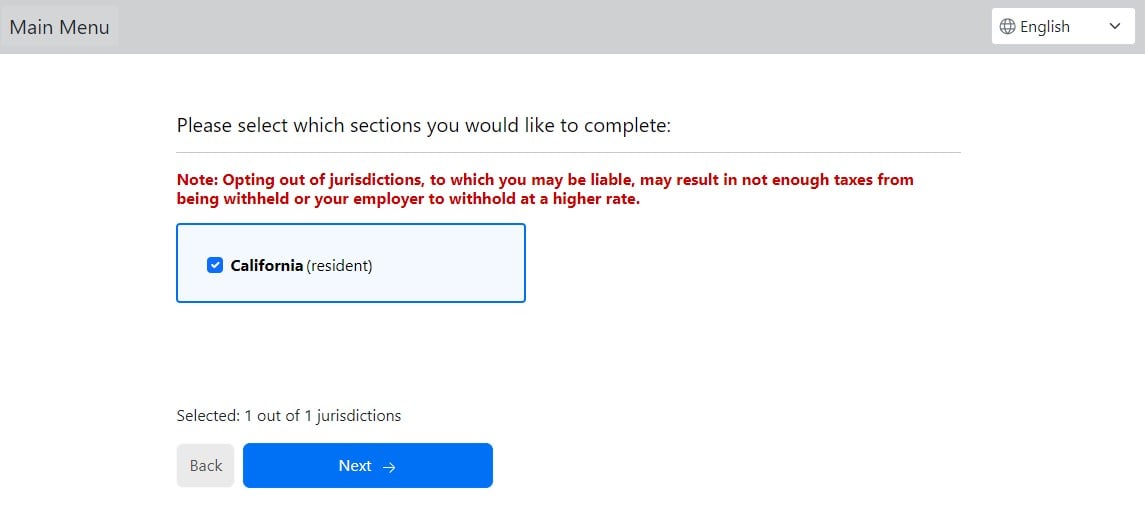
Additionally, clients can configure SPF to remove all Federal forms, which removes the Federal section within Guided Mode. This can be done by setting the `"disableFederal"` element to `true` for in `settings.json`, the SPF Registration JSON or through the Admin Panel settings. With this element set to `true` for Guided Mode, the employee’s screen will look like this:
### Turn off Federal forms
Additionally, clients can configure SPF to remove all Federal forms, which removes the Federal section within Guided Mode. This can be done by setting the `"disableFederal"` element to `true` for in `settings.json`, the SPF Registration JSON or through the Admin Panel settings. With this element set to `true` for Guided Mode, the employee’s screen will look like this:
 ### Monitoring progress
When an employee uses the Guided Mode and is completing multiple forms, they can check
their Progress through the “Check my progress” button:
### Monitoring progress
When an employee uses the Guided Mode and is completing multiple forms, they can check
their Progress through the “Check my progress” button:
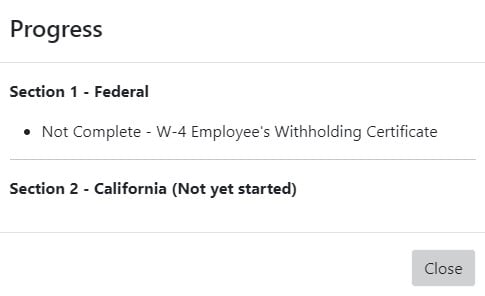
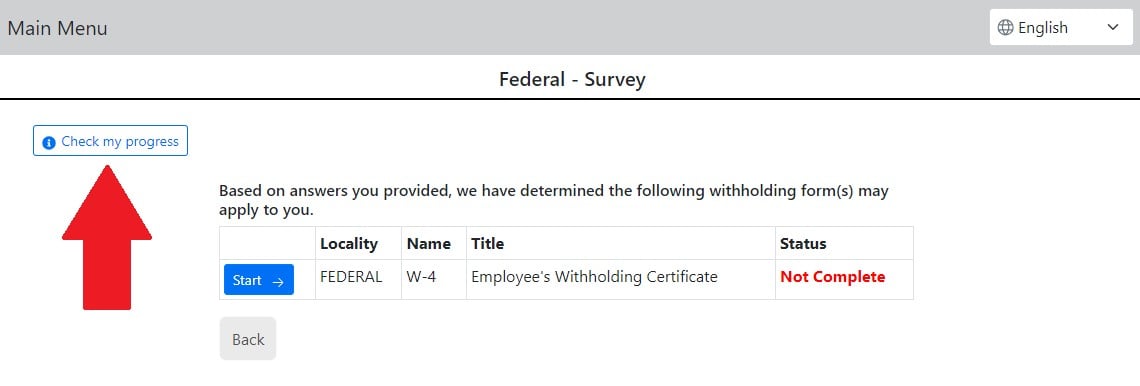 When "Check my progress" is clicked, this button will open a Bootstrap Modal that will show the progress of forms and whether they have been completed.
Form in progress indicator example:
When "Check my progress" is clicked, this button will open a Bootstrap Modal that will show the progress of forms and whether they have been completed.
Form in progress indicator example:
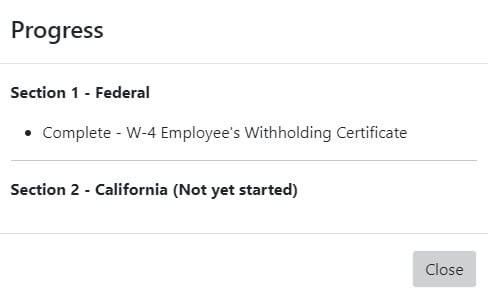
 Form completed indicator example:
 If your application is part of a sequential process in which the employee must complete a certain withholding form, or forms, before proceeding, the employee's status can be checked by your application.
**Completed Form Indicator**
When using Guided Mode, an element called `"isLastForm"` in the `"transactionLog"` object is passed into the postback JSON with a value of `false` for all but the last form in the series of forms that must be completed. When the Employee completes the flow, the `"isLastForm"` is set to `true`. This value can be used to determine if an Employee has completed all of the recommended forms that were returned in Guided Mode based on the Employee’s response to the survey questions.
## Single form mode
Single Form Mode is used within Symmetry Payroll Forms to present an employee with a single form
that needs to be submitted. When this mode is used, the employee will be taken directly into the form without any selection required. Single Form Mode corresponds to the `"singleFormMode"` element within the `"config"` object in the SPF Registration JSON which may be used by On-Premise and hosted clients.
The element is passed through SPF Registration JSON and contains the elements listed in the table below.
| Element | Data Type | Description |
| -------------------------- | ------------------ | --------------------------------------------- |
| `"singleFormMode"` | object. optional. | Single form mode configuration |
| `"singleFormMode.form"` | enum. optional. | Form IDs |
| `"singleFormMode.enabled"` | boolean. required. | Enables single form mode. Default is `false`. |
### Example
Below is an excerpt of an SPF Registration where an employee would only be presented the Federal W-4 using Single Form Mode.
```json theme={null}
"singleFormMode": {
"enabled": true,
"form": "W4101"
}
```
If your application is part of a sequential process in which the employee must complete a certain withholding form, or forms, before proceeding, the employee's status can be checked by your application.
**Completed Form Indicator**
When using Guided Mode, an element called `"isLastForm"` in the `"transactionLog"` object is passed into the postback JSON with a value of `false` for all but the last form in the series of forms that must be completed. When the Employee completes the flow, the `"isLastForm"` is set to `true`. This value can be used to determine if an Employee has completed all of the recommended forms that were returned in Guided Mode based on the Employee’s response to the survey questions.
## Single form mode
Single Form Mode is used within Symmetry Payroll Forms to present an employee with a single form
that needs to be submitted. When this mode is used, the employee will be taken directly into the form without any selection required. Single Form Mode corresponds to the `"singleFormMode"` element within the `"config"` object in the SPF Registration JSON which may be used by On-Premise and hosted clients.
The element is passed through SPF Registration JSON and contains the elements listed in the table below.
| Element | Data Type | Description |
| -------------------------- | ------------------ | --------------------------------------------- |
| `"singleFormMode"` | object. optional. | Single form mode configuration |
| `"singleFormMode.form"` | enum. optional. | Form IDs |
| `"singleFormMode.enabled"` | boolean. required. | Enables single form mode. Default is `false`. |
### Example
Below is an excerpt of an SPF Registration where an employee would only be presented the Federal W-4 using Single Form Mode.
```json theme={null}
"singleFormMode": {
"enabled": true,
"form": "W4101"
}
```