
Overview
Document verification does the following:- Guides the employee through the document upload process and uses OCR that to lift the document numbers automatically to reduce errors
- Verifies the work authorization document(s) presented match the selected document(s) from Lists A, B, and/or C
- Confirms work authorization document(s) image is clear, legible, and fully captured within the frame, including all required elements
Verified documents
Symmetry’s document verification runs a variety of checks on the following documents when an employee completes Section 1 of the Form I-9:- List A: US Passport, Passport Card, Permanent Resident Card (I-551)
- List B: Driver’s License Issued by State, State Issued ID Card
- List C: US Social Security Card
Employee experience
Once the employee selects their List A, B and/or C documents, Symmetry will begin the Document Verification process of guiding the employee through capturing the photos.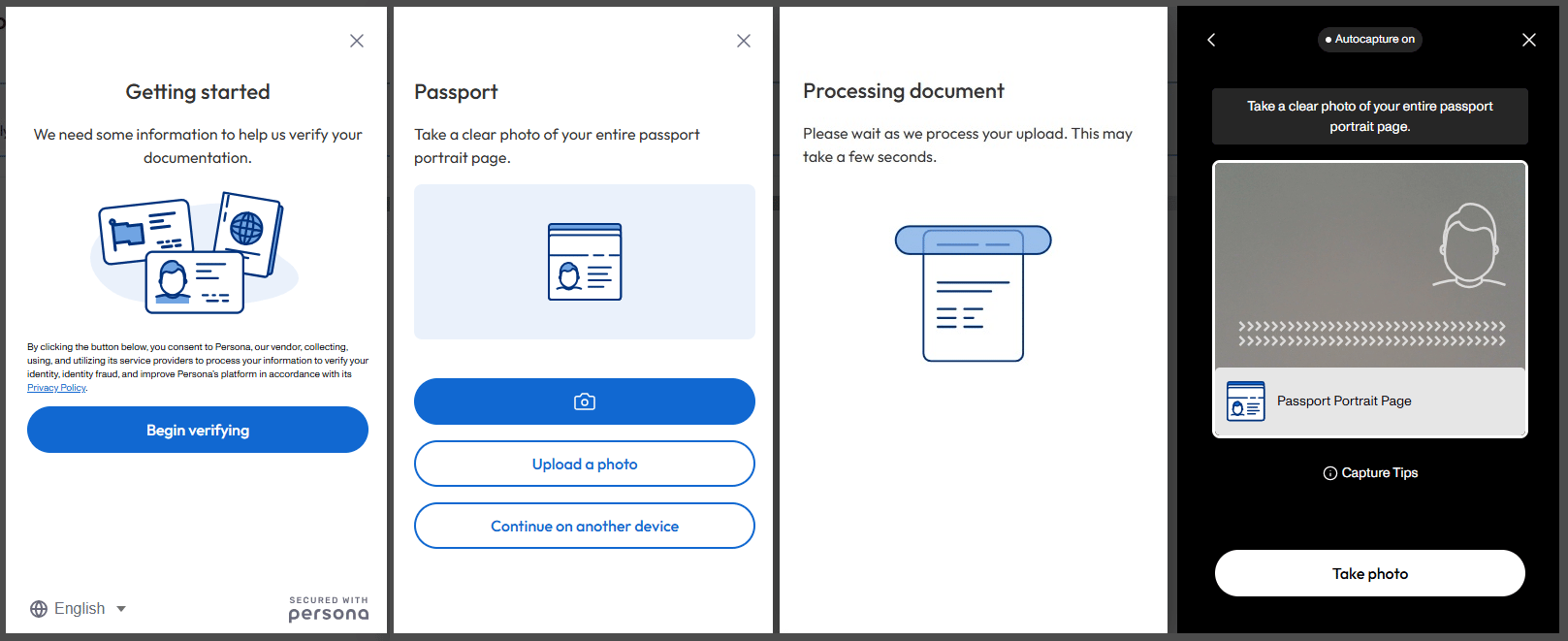
Verification checks
Each uploaded document is put through a series of automated checks. Which checks apply depends on the document presented.
Some checks apply only to particular documents:
- Double-side detection. For documents requiring a front and a back, confirms two distinct sides were uploaded rather than the same side twice.
- Barcode detection. For a driver’s license or state-issued ID, confirms a barcode is present and can be decoded.
- Image metadata detection. For a Permanent Resident Card, flags signs of photo editing that may indicate alteration.
- Social Security card checks. Confirms the key data can be read and that the card is an unrestricted card.
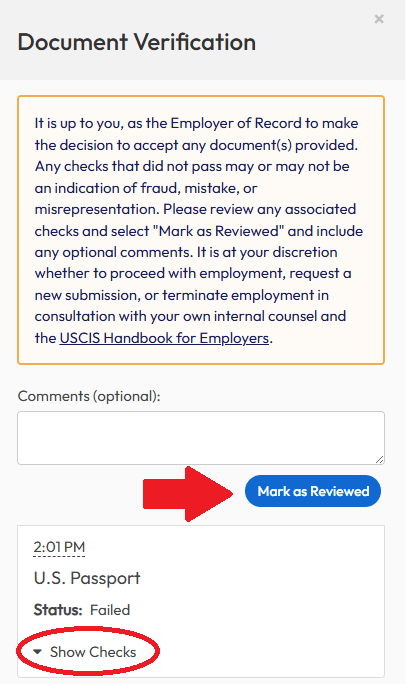
A failed check does not establish that a document is invalid. The most common cause is a mismatch between the document presented and the List A, B, or C selection the employee made, or an image that was unclear or incompletely framed. Review the result and the document before drawing a conclusion. See Unable to verify.
Managing document verification
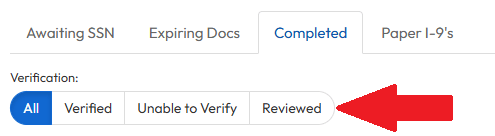
After document verification is complete, administrators can review the following results:- Verified
- Unable to Verify
- Reviewed by Admin
Verified
If the document submission from the employee is verified, it will appear in the applicable I-9 forms tab with a ‘Verified’ tag (indicated in green). There is no additional action required for verified submissions. The details of the verification can be viewed by clicking on the ‘Verified’ badge. These results can also be seen with the Form I-9 submission.Unable to verify
An administrator may need to take action when a document fails document verification. Administrators can review all failed verification results within the applicable I-9 forms tabs with the “Unable to Verify” status.