
Custom Theming for Embedded Experiences
Complete reference for the custom_app_theme object used to brand Symmetry I-9 embedded employee and administrator experiences
Symmetry I-9 supports custom theming for embedded experiences, allowing you to apply your branding to the user interfaces embedded within your platform. Theming applies to both embedded modules included with Symmetry I-9:
- Employee embedded experience: the interface end users complete to submit Form I-9
- Administrator embedded experience: the interface you use to review submissions and take action on E-Verify cases
Custom theming enables you to deliver a branded, cohesive experience across these embedded modules while preserving established UI behavior and accessibility standards.
Theming Scope and Inheritance Model
Symmetry I-9 supports a two-tier theming model that lets you manage branding at either the account (service provider) level or the employer level.
Account-Level Themes
An account-level theme acts as the default theme for your account.
- When applied, the theme cascades to all employers under your account
- Updates and deletions at this level affect all employers
- Account-level
GEToperations return the theme from the first available employer domain
Use account-level theming when you want a consistent brand experience across all employers you manage.
Employer-Level Themes
An employer-level theme applies only to a specific employer.
- Employer-level themes override any account-level theme for that employer
- Updates affect only the specified employer
- Other employers continue to use the account-level theme (if present) or their own employer-level theme
Use employer-level theming when you need employer-specific branding.
How It Works
Custom themes use a JSON configuration format that automatically translates into CSS variables applied globally across all application pages. The system uses nested JSON structures to organize style properties logically, making theme management straightforward and maintainable.
Supported customization
To ensure usability and visual consistency, only a defined set of styling properties can be modified.
Unsupported values may still be processed as CSS variables but do not affect rendered UI elements.
custom_app_theme object reference
custom_app_theme object referenceAll theme properties live under the custom_app_theme key in request and response bodies. The object contains six top-level sections. Each section supports only the properties listed below.
{
  "custom_app_theme": {
    "alerts": { /* AlertsTheme */ },
    "body": { /* BodyTheme */ },
    "buttons": { /* ButtonsTheme */ },
    "formControl": { /* FormControlsTheme */ },
    "headings": { /* HeadingsTheme */ },
    "link": { /* LinkTheme */ }
  }
}
custom_app_theme (object)
custom_app_theme (object)Root object containing all theme configuration for embedded I-9 experiences.
body (object)
body (object)Default text styling applied throughout embedded interfaces.
| Property | Type | Description |
|---|---|---|
fontSize | string | Base font size for body text (for example, 15px). |
color | string | Base text color for body content (for example, #525257). |
link (object)
link (object)Link appearance and hover states.
| Property | Type | Description |
|---|---|---|
color | string | Default link color (for example, #0a8080). |
decoration | string | Default text decoration (for example, underline or none). |
hoverColor | string | Link color on hover (for example, #005c5c). |
hoverDecoration | string | Text decoration on hover (for example, underline or none). |
headings (object)
headings (object)Typography for heading levels h1 through h6. Each level accepts the same properties.
| Property | Type | Description |
|---|---|---|
h1–h6 | object | Heading-level styling. Each level supports the properties below. |
Each heading level (h1 through h6) supports:
| Property | Type | Description |
|---|---|---|
fontSize | string | Font size for this heading level (for example, 32px for h1). |
fontWeight | string | Font weight (for example, 500 or 700). |
color | string | Text color (for example, #262626). |
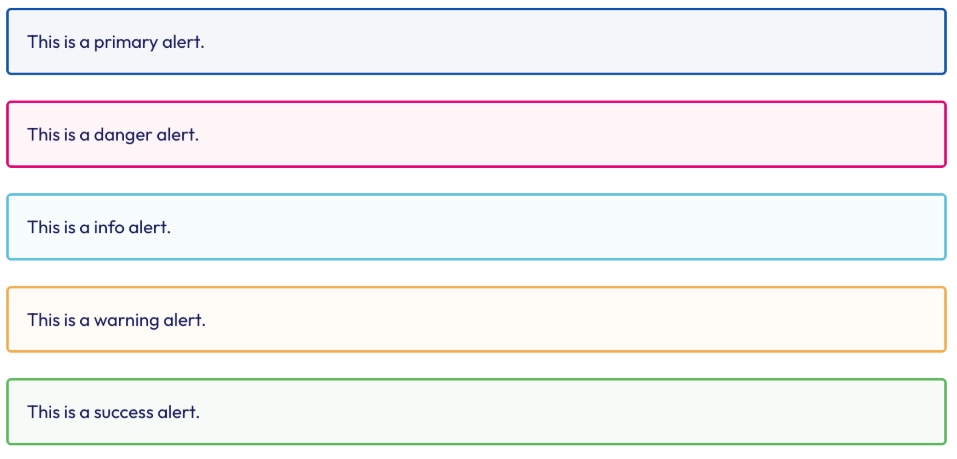
alerts (object)
alerts (object)Alert and notification styling.
| Property | Type | Description |
|---|---|---|
borderWidth | string | Border thickness for alert containers (for example, 1px). |
borderRadius | string | Corner radius for alert containers (for example, 4px). |
variants | object | Per-variant color and border settings. Supported variant keys: primary, info, danger, success, and warning. |
Each alert variant (primary, info, danger, success, warning) supports:
| Property | Type | Description |
|---|---|---|
backgroundColor | string | Background color for this alert variant. |
borderColor | string | Border color for this alert variant. |
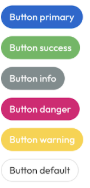
buttons (object)
buttons (object)Button styling across variants and interaction states.
| Property | Type | Description |
|---|---|---|
borderRadius | string | Corner radius for buttons (for example, 4px). |
variants | object | Per-variant button styling. Supported variant keys: primary, default, info, danger, success, and warning. |
Each button variant (primary, default, info, danger, success, warning) supports:
| Property | Type | Description |
|---|---|---|
backgroundColor | string | Background color for this button variant. |
activeBackgroundColor | string | Background color when the button is active or pressed. |
borderColor | string | Border color for this button variant. |
formControl (object)
formControl (object)Input field and form control styling.
| Property | Type | Description |
|---|---|---|
borderColor | string | Border color for inputs and form fields (for example, #929292). |
borderRadius | string | Corner radius for form fields (for example, 4px). |
focusBorderColor | string | Border color when a field is focused (for example, #005c5c). |
Complete example
The example below includes every top-level key, all six heading levels, and all supported alert and button variants.
{
  "custom_app_theme": {
    "body": {
      "fontSize": "15px",
      "color": "#525257"
    },
    "link": {
      "color": "#0a8080",
      "decoration": "underline",
      "hoverColor": "#005c5c",
      "hoverDecoration": "underline"
    },
    "headings": {
      "h1": { "fontSize": "32px", "fontWeight": "500", "color": "#262626" },
      "h2": { "fontSize": "28px", "fontWeight": "500", "color": "#262626" },
      "h3": { "fontSize": "24px", "fontWeight": "500", "color": "#262626" },
      "h4": { "fontSize": "20px", "fontWeight": "500", "color": "#262626" },
      "h5": { "fontSize": "18px", "fontWeight": "500", "color": "#262626" },
      "h6": { "fontSize": "16px", "fontWeight": "500", "color": "#262626" }
    },
    "alerts": {
      "borderWidth": "1px",
      "borderRadius": "4px",
      "variants": {
        "primary": { "backgroundColor": "#fdfcff", "borderColor": "#006cc1" },
        "info": { "backgroundColor": "#f5faff", "borderColor": "#006cc1" },
        "danger": { "backgroundColor": "#fffbfb", "borderColor": "#c53336" },
        "success": { "backgroundColor": "#f6fff8", "borderColor": "#2e8540" },
        "warning": { "backgroundColor": "#fffbf5", "borderColor": "#e5a000" }
      }
    },
    "buttons": {
      "borderRadius": "4px",
      "variants": {
        "primary": {
          "backgroundColor": "#0A8080",
          "activeBackgroundColor": "#005c5c",
          "borderColor": "#0A8080"
        },
        "default": {
          "backgroundColor": "#ffffff",
          "activeBackgroundColor": "#f5f5f5",
          "borderColor": "#1c1c1c"
        },
        "info": {
          "backgroundColor": "#006cc1",
          "activeBackgroundColor": "#005a9e",
          "borderColor": "#006cc1"
        },
        "danger": {
          "backgroundColor": "#c53336",
          "activeBackgroundColor": "#a3292b",
          "borderColor": "#c53336"
        },
        "success": {
          "backgroundColor": "#2e8540",
          "activeBackgroundColor": "#266b34",
          "borderColor": "#2e8540"
        },
        "warning": {
          "backgroundColor": "#e5a000",
          "activeBackgroundColor": "#c48800",
          "borderColor": "#e5a000"
        }
      }
    },
    "formControl": {
      "borderColor": "#929292",
      "borderRadius": "4px",
      "focusBorderColor": "#005c5c"
    }
  }
}
Visual examples
The screenshots below show how each category appears in the embedded UI.
Headings

Alerts
Buttons
Form controls

